
Getting Started
Learn how to create a NetCrunch API key and use it with both REST API and MCP Server access channels.
NetCrunch exposes its management API through two access channels:
- REST API
- MCP Server
Both channels use the same API key mechanism and the same user-based access control model.
The REST API allows external applications, scripts, and automation tools to get information from NetCrunch and manage selected objects.
NetCrunch also exposes its REST API as an MCP (Model Context Protocol) server, allowing AI assistants and LLM-based tools to discover and call the NetCrunch management API programmatically.
You can use the API to:
- retrieve node, view, policy, and credential information
- add, remove, or modify nodes
- manage Atlas views and folders
- manage monitoring packs and policies
- automate selected configuration tasks
- integrate NetCrunch with external tools and workflows
- allow AI assistants to interact with NetCrunch through MCP
To see all available operations with examples, go to Nodes, Atlas Views and Policies, and related API reference chapters.
The API key inherits the access rights of the selected NetCrunch user. This applies to both REST API requests and MCP Server calls. The API cannot access more nodes, views, policies, or configuration objects than that user can access.
api-access-channels
API Access Channels
NetCrunch provides two ways to access the same management API.
- REST API
- Direct HTTP-based API access for scripts, integrations, custom applications, and automation tools.
- MCP Server
- Model Context Protocol access that exposes the NetCrunch REST API to AI assistants and LLM-based tools.
Both channels use:
- the same API key
- the same user account binding
- the same access rights
- the same read-only restrictions
- the same connection restrictions
- the same rate limiting rules
This means that creating an API key for REST API also makes it usable by MCP, as long as the key, user permissions, and connection restrictions allow the request.
MCP does not bypass NetCrunch permissions. It is another access channel to the same management API, not a separate security model.
REST API
The REST API is the standard integration interface for NetCrunch.
Use REST API when you want to:
- call NetCrunch from scripts
- integrate NetCrunch with external systems
- automate node, view, and policy management
- retrieve monitoring data in JSON format
- build custom tools around NetCrunch data
Base request format:
https://<NetCrunch Server IP>/api/rest/2/<scope>
Authentication can be provided by URL parameter:
https://<NetCrunch Server IP>/api/rest/2/<scope>?api_key=<user API key>
or by HTTP header:
x-api-key: <user API key>
Passing an API key in the URL is convenient for testing, but it can expose the key in browser history, proxy logs, server logs, or monitoring tools. For production integrations, use the x-api-key header.
MCP Server
NetCrunch exposes its REST API as an MCP (Model Context Protocol) server.
MCP allows AI assistants and LLM-based tools to:
- discover available NetCrunch API operations
- understand available parameters
- call NetCrunch management functions programmatically
- retrieve NetCrunch data through a controlled API layer
- perform authorized automation tasks
The MCP Server is useful when NetCrunch is connected to AI-based tools that can reason about monitoring configuration, node state, alerts, policies, or inventory data.
Typical MCP use cases include:
- asking an AI assistant to inspect node information
- retrieving Atlas view or policy data
- finding monitoring configuration issues
- preparing API-based automation steps
- generating scripts based on discovered NetCrunch API capabilities
- assisting operators with NetCrunch management tasks
MCP uses the same API key process as REST API. You do not create a separate MCP key.
MCP access should be treated with the same security discipline as REST API access. If the linked user can modify NetCrunch objects and the key is not read-only, an MCP client using that key can also perform write operations exposed by the API.
generate-api-key
Generate API Key
Before the NetCrunch API can be used through REST API or MCP Server, you need to generate an API key.
To create a new API key:
- Go to Settings NetCrunch System Users & Access Rights Manager
- Select API Keys in the left panel
- Add a new application
- Enter the application name
- Select the NetCrunch user account that the key should be tied to
- Select the expiration time of the API key
- Untick Read-Only if the script, application, or MCP client will modify NetCrunch objects
- Optionally, set connection restrictions
The selected user controls API permissions. If the user cannot access a view, node, policy, or credential in NetCrunch, the API key tied to that user cannot access it either.
This applies equally to:
- direct REST API calls
- MCP Server calls
- AI assistants connected through MCP
- automation tools using REST API
Use a dedicated NetCrunch user account for automation when possible. This makes API access easier to audit and prevents accidental dependency on a personal administrator account.
API Key Fields
- Application Name
- Name of the application, integration, script, or MCP client using the API key. This name appears in the NetCrunch event log when the API key is used.
- Username
- NetCrunch user account linked to the API key. This controls what objects the API can access. Every object accessible by the selected user can be accessed through the API key.
- API Key
- Secret value used to authenticate API requests. The same key is used for REST API and MCP Server access.
- Valid Until
- Expiration time of the API key. After this time, requests using the key will be rejected.
- Read-Only
- Restricts the API key to operations that do not modify NetCrunch objects. Keep this enabled for reporting, inventory, synchronization, AI-assisted inspection, and read-only integrations.
- Connection Restriction
- Restricts where the API key can be used from.
Available connection restriction options:
- No restriction
- NetCrunch Server Machine
- By IP Address
- No restriction
- The API key can be used from any source that can connect to the NetCrunch REST API or MCP Server endpoint.
- NetCrunch Server Machine
- The API key can be used only from the local NetCrunch Server machine.
- By IP Address
- The API key can be used only from selected IP addresses or address ranges. You can specify a network address, dash-separated IP range, or individual IP addresses separated by commas.
Example values:
192.168.1.10
192.168.1.10-192.168.1.50
192.168.1.10,192.168.1.20,192.168.1.30
192.168.1.0/24
Security Recommendations
Treat API keys as passwords.
Recommended practices:
- use HTTPS instead of HTTP
- prefer the x-api-key header over URL parameters for REST API
- avoid storing API keys directly in scripts or MCP client configuration files when possible
- use environment variables or secure secret storage
- create separate API keys for separate applications or MCP clients
- use read-only keys unless write access is required
- set expiration dates
- restrict API keys by source IP when possible
- remove unused keys
- review the NetCrunch event log for API usage
- use dedicated low-privilege users for AI and automation access
For MCP integrations, avoid using full administrator accounts unless the assistant or client must perform administrative operations. A read-only or limited-access user is safer for inspection, reporting, and diagnostic workflows.
rate-limiting
Rate Limiting
NetCrunch applies rate limiting to API requests.
By default, the limit is:
100 requests per 60 seconds
This limit applies to both:
- REST API requests
- MCP Server calls
The limit is shared because MCP exposes the same NetCrunch management API and can generate API calls programmatically. AI assistants and LLM-based tools may call several operations while resolving a single user request, so rate limiting protects the NetCrunch Server from accidental request bursts, inefficient automation loops, and excessive load.
Rate limiting helps protect:
- NetCrunch Server responsiveness
- monitoring performance
- event and configuration database access
- API availability for other integrations
- system stability when external tools behave unexpectedly
When the rate limit is exceeded, the client should slow down and retry later.
The limit can be changed in the NetCrunch server configuration file:
server.cfg.yml
However, changing the default value is not recommended.
Raising the limit may increase server load, especially if multiple integrations, scripts, or MCP clients are active at the same time. Lowering the limit may break existing automation or cause MCP clients to fail during multi-step operations.
If an integration reaches the rate limit, review the integration logic first. Prefer batching, caching, filtering, and fewer repeated requests instead of increasing the server limit.
Using the API
NetCrunch REST API consists of four main scopes that allow you to access and manipulate different areas of NetCrunch configuration and data.
Available scopes:
- Nodes
- Atlas Views
- Monitoring Packs and Policies
- Credentials
Data returned by NetCrunch is in JSON format.
Every REST API request must specify:
- NetCrunch Server address
- API version
- scope
- target object or operation
- API key
Base request format:
https://<NetCrunch Server IP>/api/rest/2/<scope>
Authentication using URL parameter:
https://<NetCrunch Server IP>/api/rest/2/<scope>?api_key=<user API key>
Authentication using HTTP header:
x-api-key: <user API key>
MCP clients use the same API key, but the key is provided through the MCP client configuration instead of being manually placed in every REST URL.
API Scopes
- Nodes
- Used to retrieve and manage NetCrunch nodes. This includes node properties, network addresses, device types, monitoring settings, custom fields, services, monitoring engines, and status information.
- Atlas Views
- Used to retrieve and manage Atlas views, folders, and their hierarchy.
- Monitoring Packs and Policies
- Used to retrieve and manage monitoring packs and policies. These define reusable monitoring, alerting, and reporting settings.
- Credentials
- Used to manage credential-related configuration available through the API.
Object Identifiers
Most scopes can reference objects by one of the supported identifiers, depending on the endpoint.
Common identifiers include:
- name
- IP address
- object ID
Node, view, or monitoring pack ID can be found in object settings. To copy the ID, click on it.
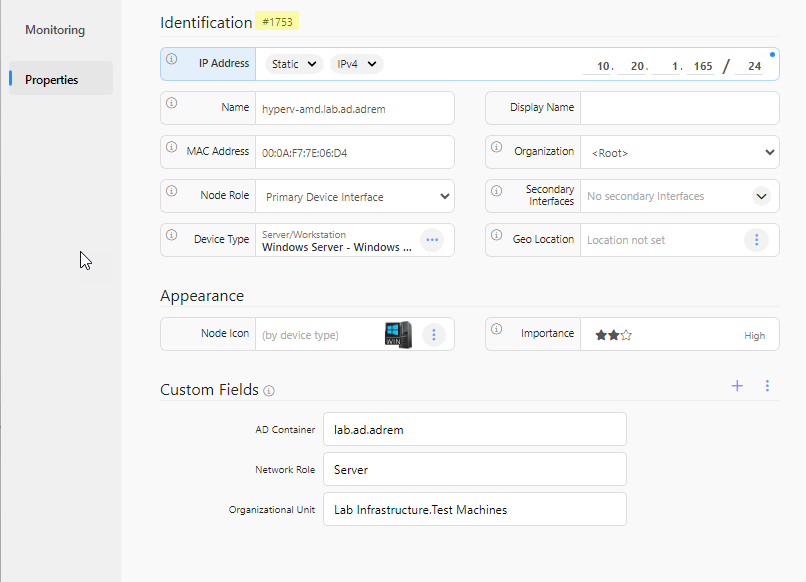
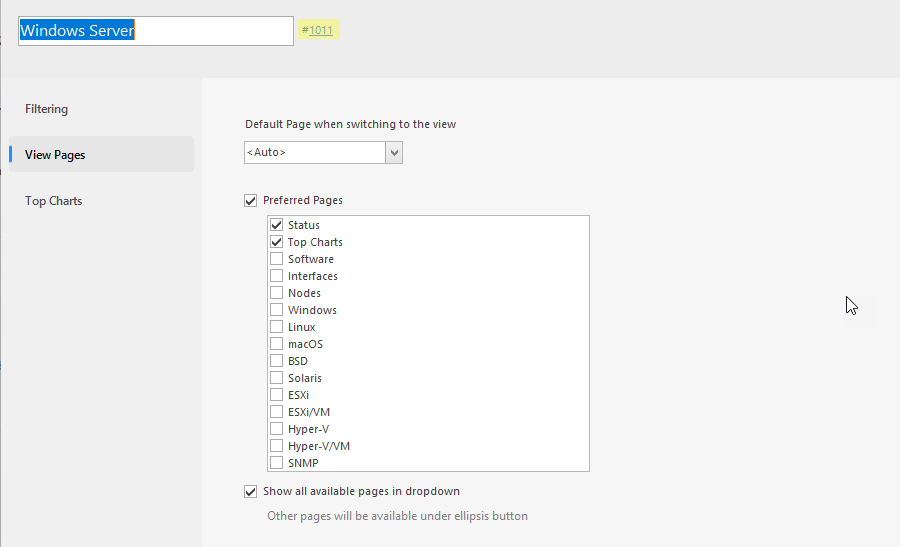
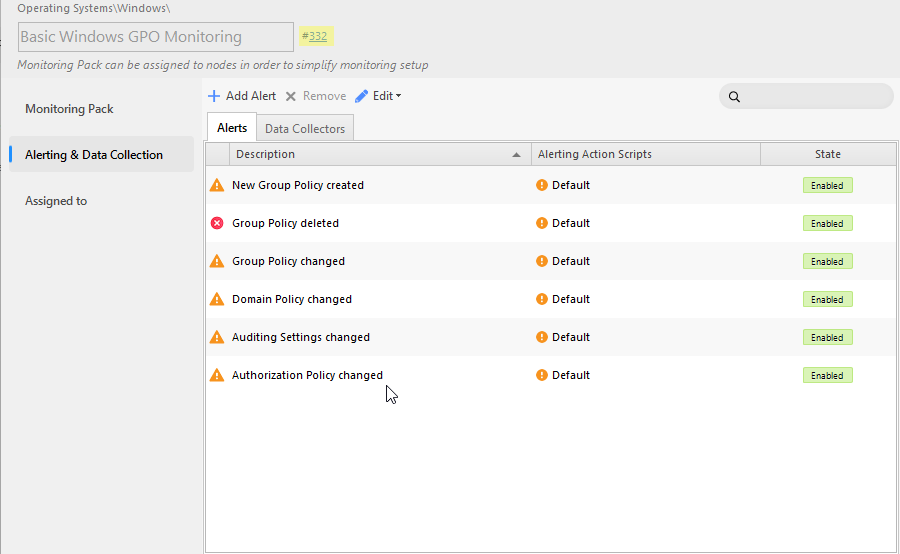
Using IDs is recommended for automation because names and addresses can change.
Request Format
A typical REST API request contains:
- HTTP method
- API endpoint
- API key
- optional request body
Common HTTP methods:
- GET
- Retrieves data.
- POST
- Creates a new object or executes an action.
- PUT
- Updates an existing object.
- DELETE
- Removes an object.
Use the method required by the specific API endpoint. Do not assume that every scope supports every HTTP method.
Response Format
NetCrunch returns data in JSON format.
A successful response usually contains the requested object, list, or operation result.
An error response may indicate:
- invalid API key
- expired API key
- insufficient user rights
- object not found
- invalid scope
- invalid request body
- connection restricted by API key settings
- read-only key used for a write operation
- rate limit exceeded
Example
Get All Node Properties
This example retrieves all properties of a node identified by its IP address.
cURL
curl --request GET --url "http://<netcrunch>/api/rest/2/nodes/192.168.0.25?api_key=<your-api-key>"
The same request using the x-api-key header:
curl --request GET \
  --url "https://<netcrunch>/api/rest/2/nodes/192.168.0.25" \
  --header "x-api-key: <your-api-key>"
Result
{
  "id": 1001,
  "name": "ncsrv.ac.acme",
  "dnsName": "ncsrv.ac.acme",
  "networkAddress": "10.20.16.94",
  "networkPrefixLength": 21,
  "snmpComputerName": "",
  "snmpOsDescription": "",
  "snmpSysObjId": "",
  "snmpLocation": "",
  "snmpAvailable": false,
  "snmpManaged": false,
  "snmpProfile": "",
  "snmpPort": 161,
  "snmpTimeout": 5000,
  "snmpRetryCount": 3,
  "displayName": "",
  "organization": "<Root>",
  "networkServices": [
    {
      "name": "PING",
      "status": "OK"
    },
    {
      "name": "HTTP",
      "status": "OK"
    },
    {
      "name": "CIFS/SMB",
      "isLeading": true,
      "status": "OK"
    }
  ],
  "monitoringTime": 1,
  "netBiosName": "",
  "identification": "ipAddress",
  "deviceType": {
    "class": "Server/Workstation",
    "os": "Windows Server",
    "version": "Windows 2016 Server",
    "manufacturer": "VMware"
  },
  "simplifiedMonitoring": false,
  "status": "OK",
  "avgResponseTime": 1,
  "maxResponseTime": 1,
  "alerts24h": {
    "count": 1,
    "critical": 0,
    "warning": 0,
    "unacknowledged": 0
  },
  "lastAlert": {
    "id": 187,
    "info": "PhysicalDisk(_Total)\% Disk Time 32.19 is back below reset value 60",
    "serverity": "Warning",
    "time": "2018-12-04T10:52:42.000Z"
  },
  "macAddress": "005056AB9815",
  "enabled": true,
  "disabledFrom": null,
  "disabledUntil": null,
  "addTime": "2018-12-03T13:58:46.841Z",
  "lastStatusChange": "2018-12-04T10:56:52.944Z",
  "issueCount": 0,
  "virtualization": {
    "type": "VMware",
    "hostNodeId": 1061,
    "hostName": "esxi05.ac.acme",
    "dataCenter": "ha-datacenter"
  },
  "monitoringEngines": [
    {
      "name": "win",
      "enabled": true,
      "status": "OK"
    },
    {
      "name": "ntsvc",
      "enabled": true,
      "status": "unknown"
    },
    {
      "name": "ntlog",
      "enabled": true,
      "status": "OK"
    },
    {
      "name": "inv",
      "enabled": true,
      "status": "OK"
    },
    {
      "name": "sensors",
      "enabled": true,
      "status": "OK"
    }
  ],
  "pendingAlertsCount": 1,
  "customFields": {
    "Virtual Machine ID": "ncsrv.ac.acme"
  },
  "interfacesMonitoringEnabled": false,
  "organizationalUnit": "For Running NC Machine",
  "snmpTrapCodePage": 4294967295,
  "sysLogCodePage": 4294967295,
  "lastNote": null,
  "nodeType": "IP Node",
  "osMonitorType": "windows",
  "hypervisorKind": "none",
  "probeType": "",
  "addressSpace": ""
}
Reading the Result
The returned node object contains several groups of information.
Basic identity fields:
- id
- name
- dnsName
- networkAddress
- displayName
- organization
- nodeType
Monitoring state fields:
- status
- enabled
- simplifiedMonitoring
- monitoringTime
- lastStatusChange
- issueCount
Service status fields:
- networkServices
- isLeading
- avgResponseTime
- maxResponseTime
Device identification fields:
- identification
- deviceType
- macAddress
- organizationalUnit
SNMP fields:
- snmpAvailable
- snmpManaged
- snmpProfile
- snmpPort
- snmpTimeout
- snmpRetryCount
- snmpLocation
- snmpSysObjId
Alert summary fields:
- alerts24h
- lastAlert
- pendingAlertsCount
Monitoring engine fields:
- monitoringEngines
Virtualization fields:
- virtualization
Custom data fields:
- customFields
Auditing API Usage
When an API key is used to execute a request, NetCrunch logs the following information to the NetCrunch event log:
- application name provided in API key configuration
- username linked to the API key
- source IP address of the request
This applies to both REST API and MCP Server access.

This makes it possible to audit API usage and identify which integration, script, or MCP client accessed NetCrunch.
Troubleshooting
API Key Does Not Work
Check the following:
- the API key was copied correctly
- the key has not expired
- the key is tied to an active NetCrunch user
- the selected user has access to the requested object
- the key is not restricted to a different source IP address
- the request is sent to the correct NetCrunch Server
- the correct API version is used in the URL
- the MCP client is configured with the same API key if using MCP
Write Operation Fails
Check whether the API key is configured as Read-Only.
If the key is read-only, it can retrieve data but cannot add, modify, or remove NetCrunch objects. This applies to both REST API and MCP Server calls.
Object Cannot Be Found
Check whether the object identifier is correct.
For automation, prefer object IDs instead of names or IP addresses. Names can be duplicated or changed. IP addresses can change when devices are moved, reconfigured, or monitored through a different address space.
Access Is Denied
The API key inherits the access rights of the selected NetCrunch user.
Check whether the user can access the same object in the NetCrunch Console.
Request Works Locally but Not Remotely
Check connection restrictions in the API key configuration.
The key may be limited to:
- NetCrunch Server Machine
- selected IP address
- selected IP range
- selected network
Too Many Requests
The API client may be exceeding the default rate limit.
Default limit:
100 requests per 60 seconds
This can happen with:
- polling scripts
- synchronization jobs
- poorly optimized integrations
- MCP clients performing multiple API calls for a single task
- automation loops
Review the integration first. Avoid increasing the limit unless there is a clear operational reason.
Best Practices
- Use read-only keys for reporting
- If the integration only retrieves data, keep Read-Only enabled.
- Use separate keys per integration
- Do not reuse one API key for many unrelated scripts, systems, or MCP clients.
- Use clear application names
- The application name appears in the event log, so use names that identify the integration clearly.
- Restrict source addresses
- Limit each API key to the server or network that actually runs the integration.
- Set expiration dates
- Permanent keys are harder to control. Use expiration dates and renew keys intentionally.
- Prefer IDs in scripts
- Object names and IP addresses may change. IDs are more stable for automation.
- Prefer HTTPS
- Use HTTPS for API calls, especially when the API key is transmitted over the network.
- Prefer headers for REST authentication
- Use x-api-key instead of putting the key in the URL.
- Limit MCP permissions
- Use read-only or limited users for AI assistants unless write access is explicitly required.
- Avoid unnecessary polling
- Cache results, filter requests, and avoid repeated calls for unchanged data.
- Respect rate limits
- The default limit protects the NetCrunch Server and should not be changed unless necessary.
- Review event logs
- Regularly check API usage in the NetCrunch event log.
Related Topics
See also: